Showing customer groups in a booked cell
If you book a member on your tee sheet, and you would like to look at the cell and know what league that member is in, you can now see that displayed in the cell as of the 3.100 release. This will help you keep track of many different leagues.
Quick steps
To create a customer group
If you have yet to create a group for these customers, do the following:
-
Go to Tools | Options | Reference Tables | Customer Group. The Customer Group display is to the right.
-
Click Add to the right of the list and enter a descriptive name in the Group Name field.
-
Click Save and Close in the lower right corner of the screen. That would classify a collection of members. Once these groups have been created, you can assign a customer to a group within the Preferences tab of the Customer module. No need to shut the software down and open it again.
To add a member to this new group
You also assign a customer to a group. This allows you to set tee times aside for members within certain groups by blocking tee times for the members of this group within Starter Hut v3 (See section below).
-
Go to the Customer module.
-
Look up the customer.
-
Select the Preference tab in the middle of the screen.
-
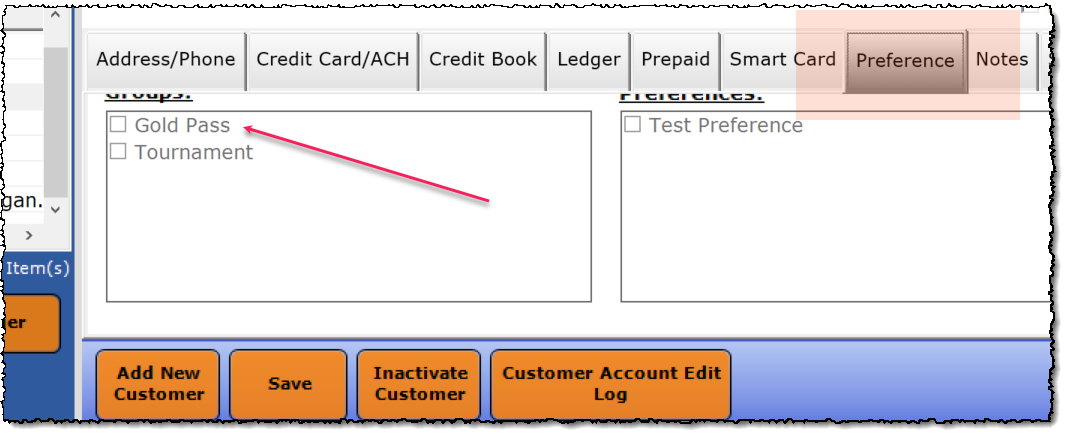
In the Groups section, select the group checkbox to which this customer belongs. You may have to scroll down to find the Groups section.
-
Select the Save button at the bottom center of the screen.
Note: Other things you can do in the Preferences tab for a customer are add some personal information about them. For instance, you can denote what size a customer wears in merchandise.
To block tee times for a member group
Block tee times for a group, by doing the following:
-
Go to Starter Hut.
-
With your built tee sheet, reserve a block of time for this group by selecting the tee times needed, right-click and select Block, OR select Block from the right panel. The Block Tee Times pop-up displays.
Tips:
To learn how to change the color of the blocked cells, click here>>
To learn how to highlight the cells based on the amount of time, click here>> To watch a video of that, click here>> -
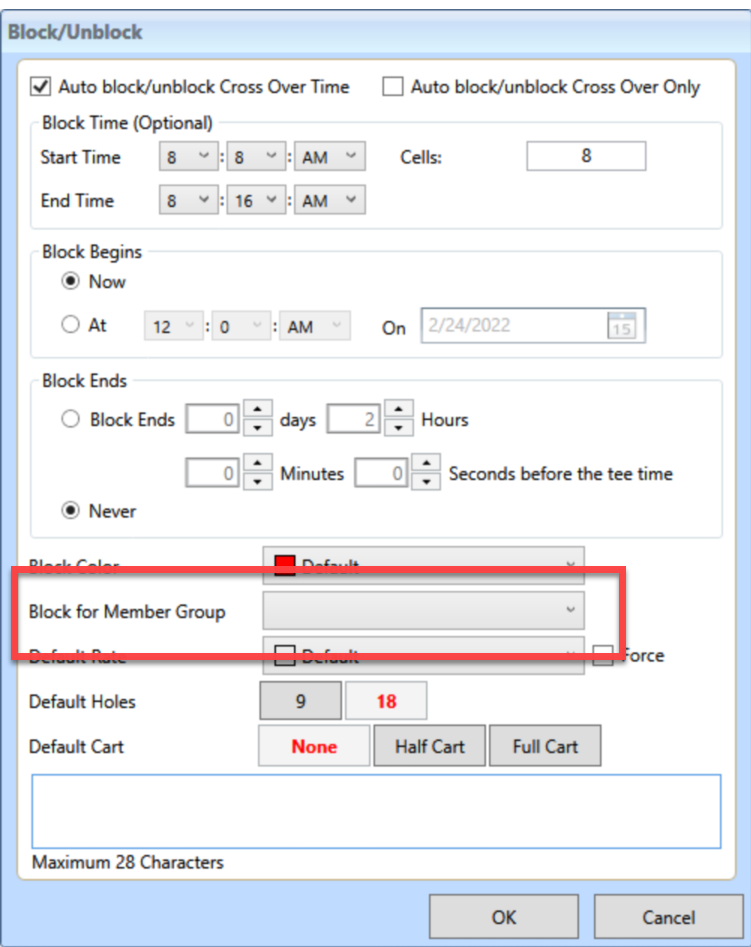
Select the member group from the Block for Member Group drop-down.
-
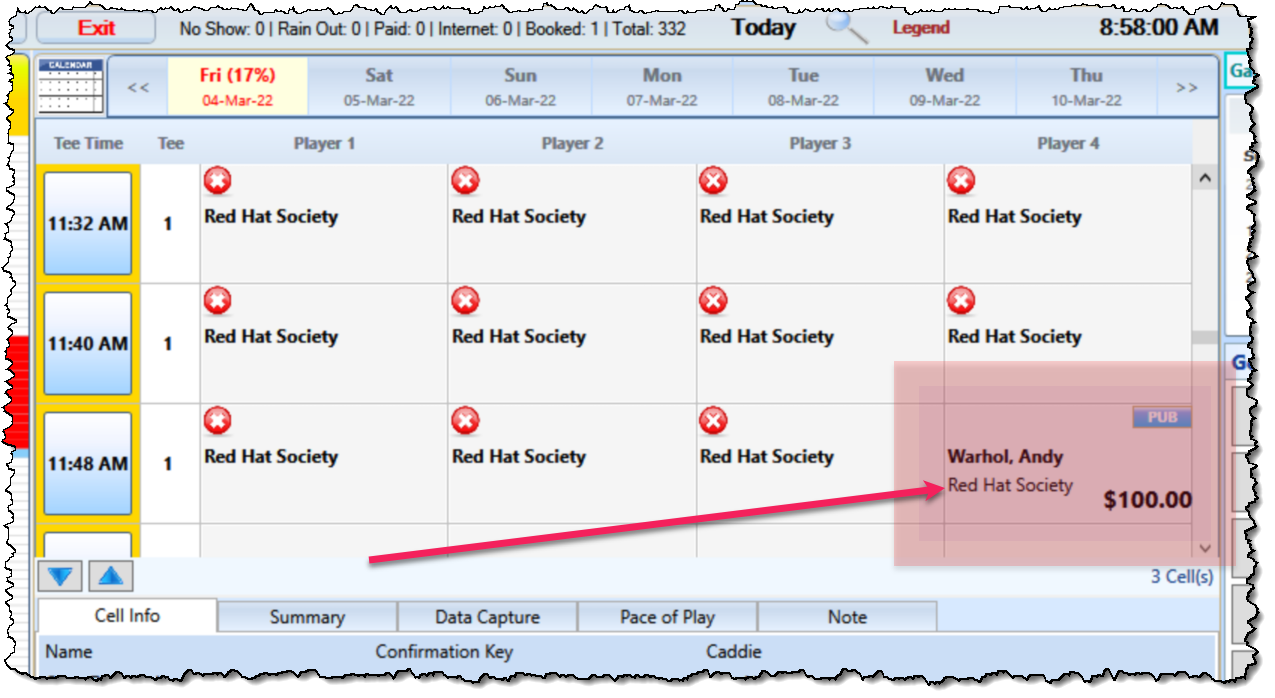
Make any other necessary changes, then click OK. The tee sheet displays the times blocked off with the member’s group name in each blocked cell.
Add a golfer that is part of that Member Group
Note: For the group name to display on the cell, you must add the golfer belonging to that group AFTER you have blocked time for that group. (See steps above).
-
In Starter Hut, double-click one of the blocked cells from this member group.
-
Find the customer of this member group. For more information on booking a tee time, click here>>
-
Select Reserve. Notice that the cell still displays the group name in the cell. Making a booking at a blocked time keeps the group name in the notes field.
Shout out to Luke